Step 1: Access Bank Statement View
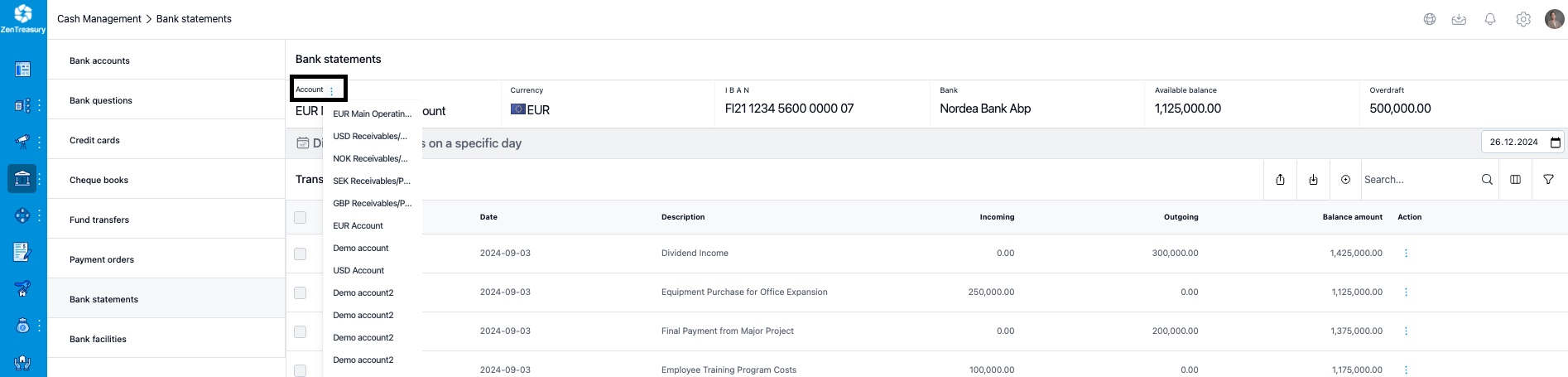
Navigate to the Cash Management module. Select the 'Bank statement' view to access bank account balances individually. To switch the account you're reviewing, click the three dots next to the current bank account name and select another account.
Step 2: Import Bank Statements
The bank statements can be imported daily to keep up with the cash available.
1) Click the import icon located at the top right corner to start importing balances.
2) In the following view, download the sample import file available in Excel or CSV format.
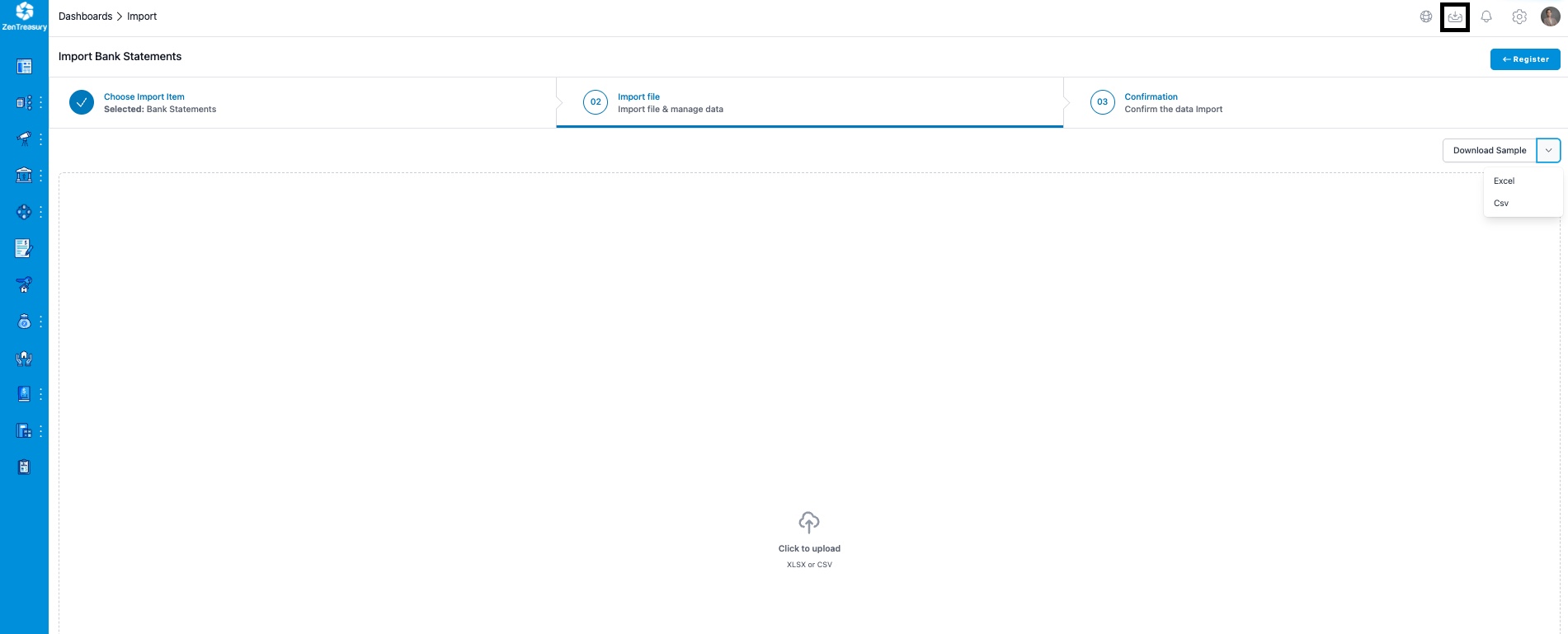
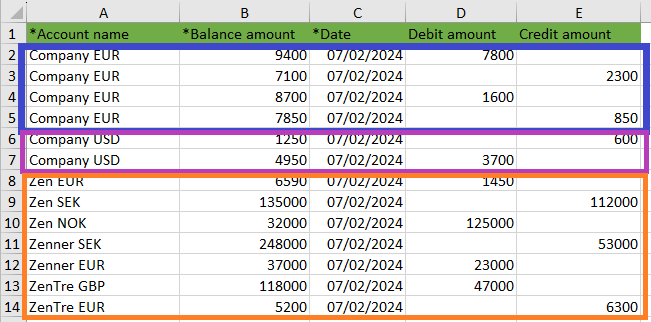
3) Import Excel has sample data, which you can remove. Ensure that the Account name matches the name used in ZenTreasury.

Filling in the Data
You can input balances in three ways:
- Transaction-wise (marked in blue): Input each transaction separately.
- Net Debit and Net Credit (marked in purple): Enter net debit and net credit amounts separately.
- Net Amount (marked in orange): Provide just the net amount for each account.
Step 3: Upload and Import Data
1) After filling in the required balances, save the file.
2) Select 'Click to upload' and choose the file to be imported from your computer.
3) The mapping view will appear and if there are no changes made to the import file headers, everything will be automatically mapped correctly. Click 'Check' on the right highlighted in blue.
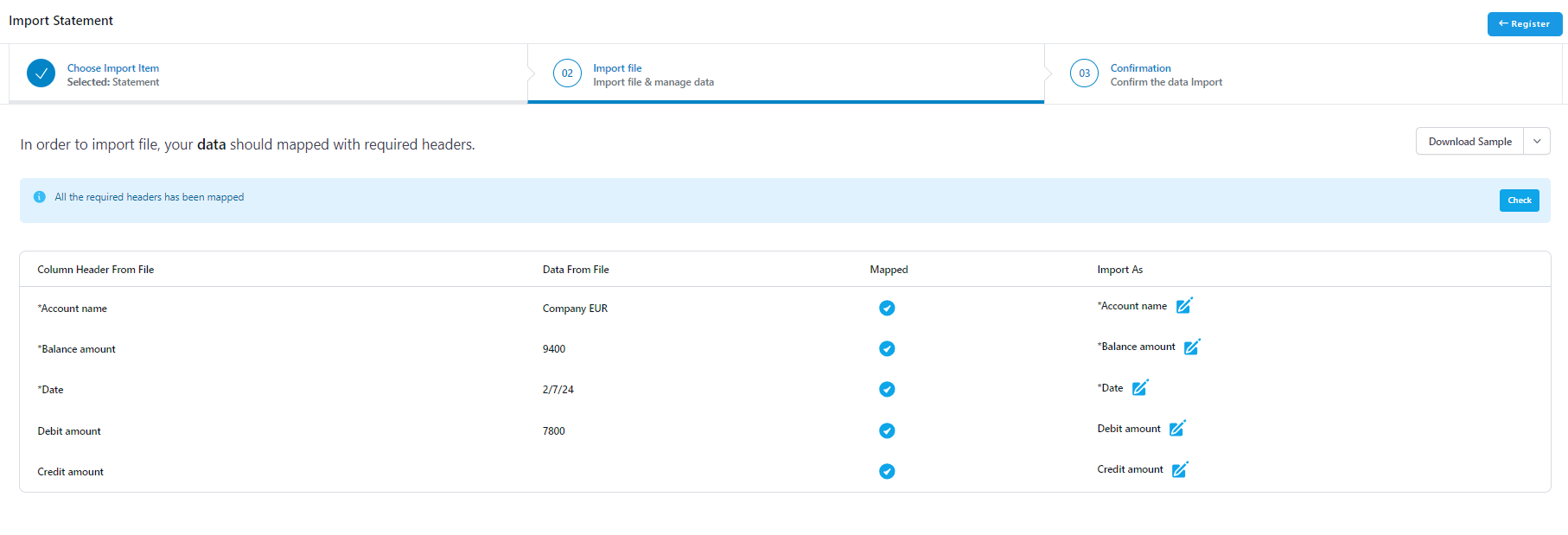
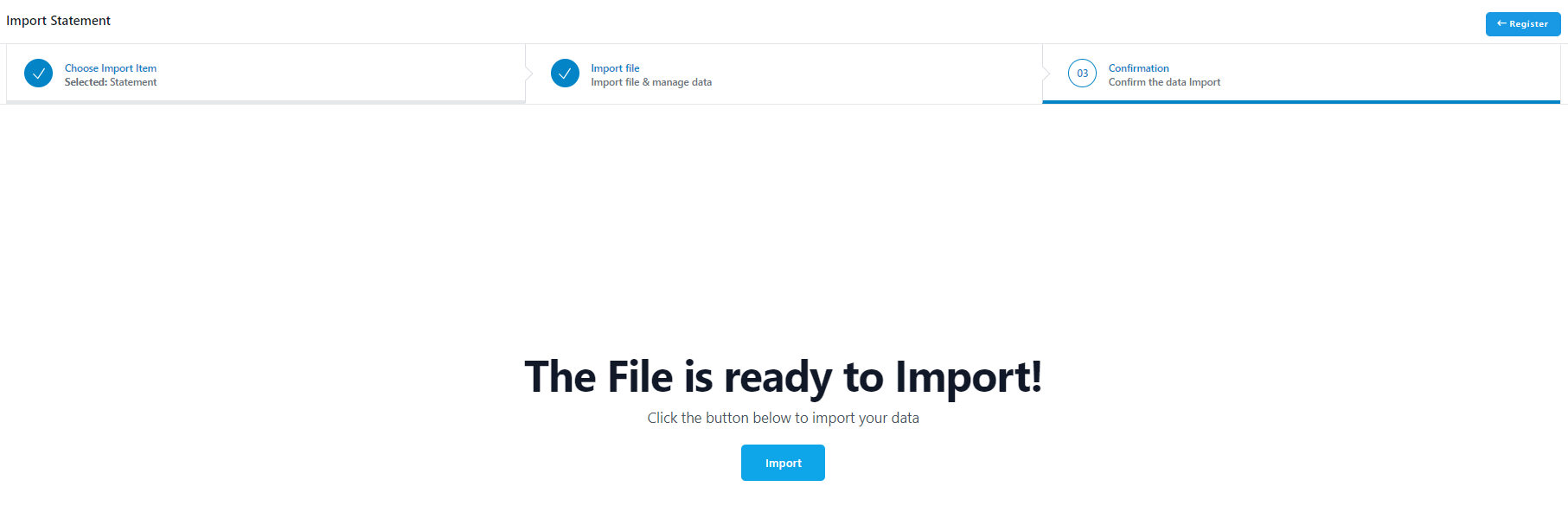
4) If no errors are detected, click 'Import' to import the balances. If there are any errors, there will be a notification of the issue, for example if there is a typo in the Account name or if the account in question doesn't exist in ZenTreasury, in which case you have to first add the account in Cash Management - Bank accounts.
Step 4: Review Imported Balances
1) You will be taken to the main import view and by refreshing the browser you will see the notification on top right corner about the status of the import (succeeded/failed).
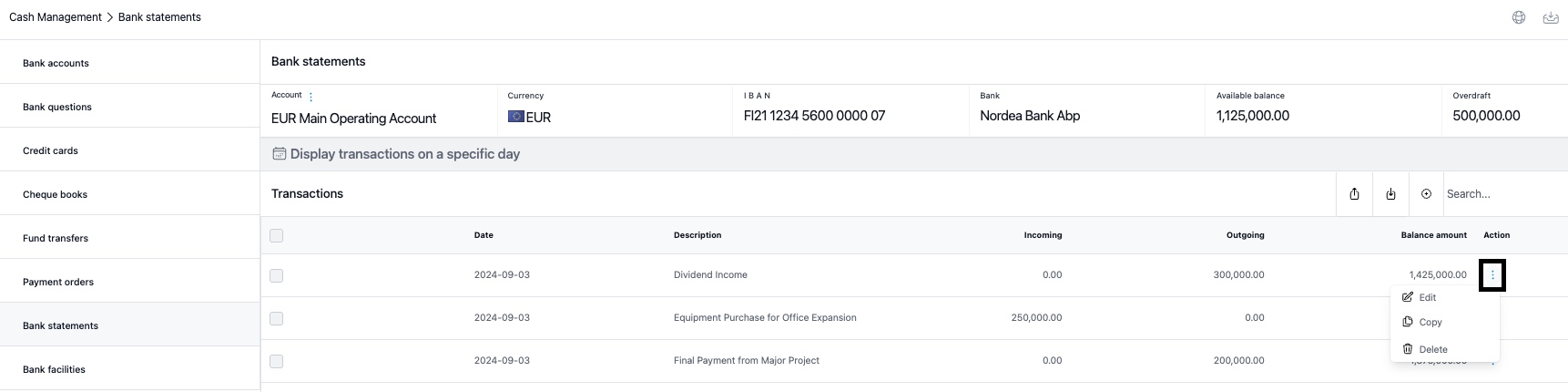
2) Go to Cash Management - Bank statement view and you will see the imported balances per account. You can switch to another account from the three dots after the account name.
Editing Imported Transactions
If errors are found in the import file, you can edit, copy or delete each transaction separately from the three dots after the transaction in Action column.
Comprehensive Account Overview
For a total view of bank accounts, go to 'Dashboard - Cash Management'. Here, you can opt for a total view of all accounts or filter by entity and balance status date.
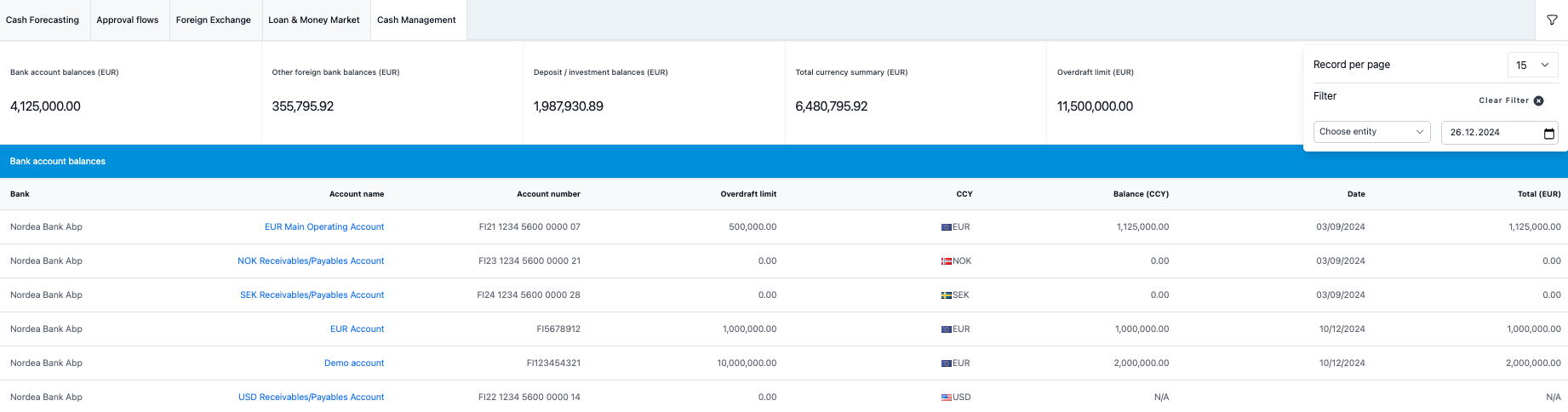
Scrolling down the page you will also see possible fixed deposits/investments summary and other foreign currency bank balances (as in foreign currency other than the base currency of the entity) and the total summary of the currencies both in currency and in the base currency of the entity (if there are FX rates input in the system) valued by the latest rate available for the currencies in question.
Was this article helpful?
That’s Great!
Thank you for your feedback
Sorry! We couldn't be helpful
Thank you for your feedback
Feedback sent
We appreciate your effort and will try to fix the article