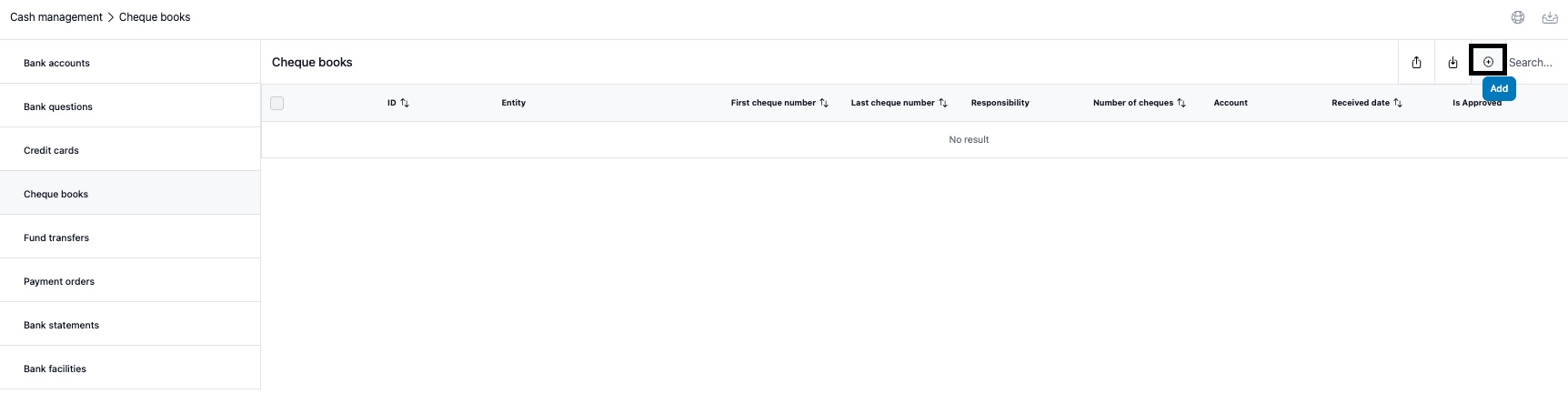
Go to Cash Management module and select Cheque book tab. Click the + icon to add a cheque book.
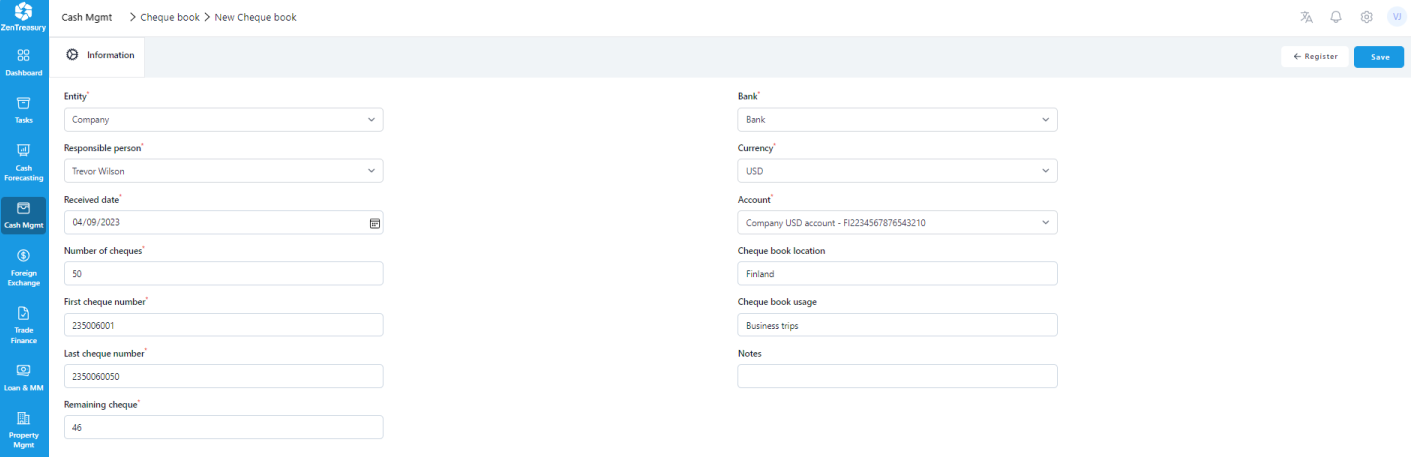
Fill in the fields. Explanations below. When ready, click 'Save'.
Entity
The company that owns the cheque book.
Responsible person
The person who is responsible for the usage of the cheque book.
Received date
Date when the cheque book has been handed over.
Number of cheques, First cheque number, Last cheque number and Remaining cheque
The amount of cheques, first number on the cheque, last number on the cheque and number of remaining cheques. This is for keeping track of the used cheques.
Bank, currency and account
The providing bank of the cheques, the currency of the cheques and from which account the funds will be debited when the cheque is claimed.
Cheque book location
Where the cheque book is located. It can be a country, city or a certain office, for example.
Cheque book usage
The purpose for the cheque book.
Notes
Free text field related to the cheque book.
After saving the cheque book, you can use edit function to access the other tabs that will show only after the cheque book is created and saved.

Audit Trail
Shows the audit trail for the cheque book changes in the system with the information regarding the person who has made the changes, what data has been changed and when.
Approval Flow
Shows the possible approval flows that are related to the cheque book in question. It can include for example an approval chain to add the cheque book or changes to it.
Attachments
You can attach files up to 5MB each regarding the cheque book, for example a document from the providing bank.
Was this article helpful?
That’s Great!
Thank you for your feedback
Sorry! We couldn't be helpful
Thank you for your feedback
Feedback sent
We appreciate your effort and will try to fix the article