The Scheduled Report feature allows users to automate the generation of reports at specified intervals. This ensures that reports are prepared and ready without manual intervention.
How to Schedule a Report:
1. Save the Report in the Report Library
- Before scheduling, ensure that the desired report is saved in the Report Library.
- If needed, finalize the report data by pressing the three-dot menu in the "Action" column and ''Edit'' button.
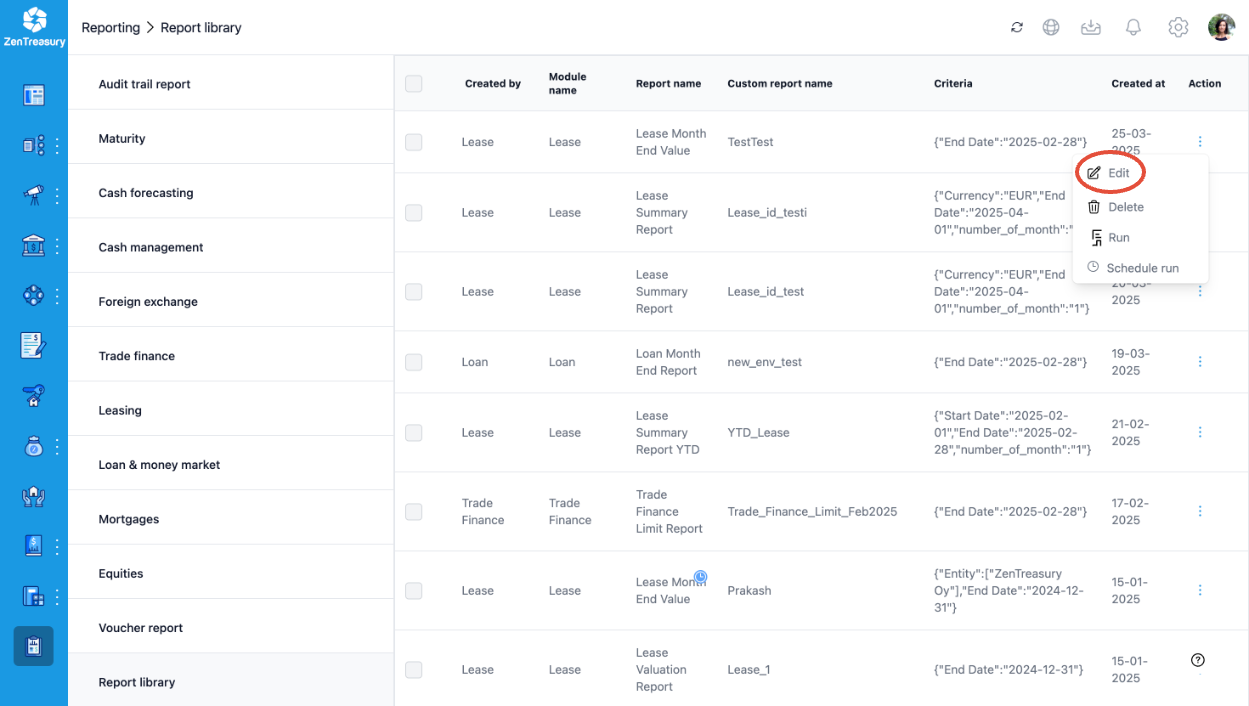
2. Access the Schedule Run Feature
- Navigate to the Report Library.
- Locate the desired report in the list.
- Click the three-dot menu in the "Action" column and select Schedule Run.
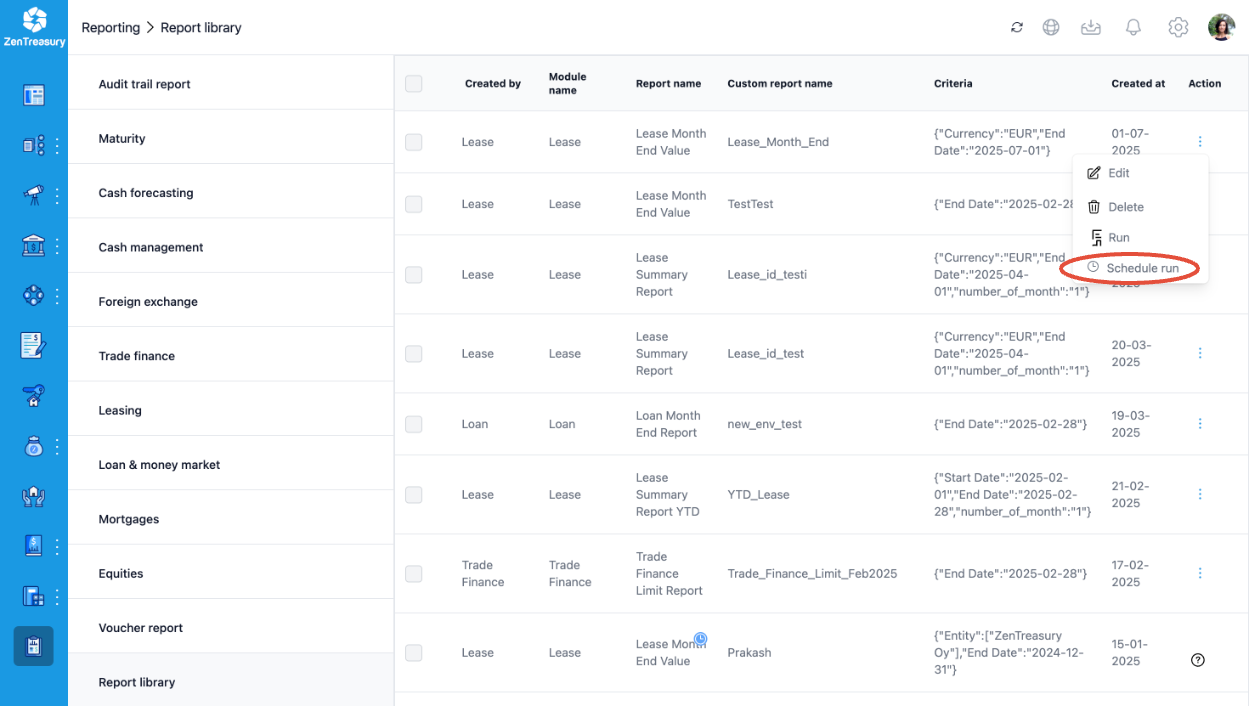
3. Choose the Time Frame
- Currently, Monthly scheduling is the only available option.
- Select "Monthly" to run the report at the end of each month.
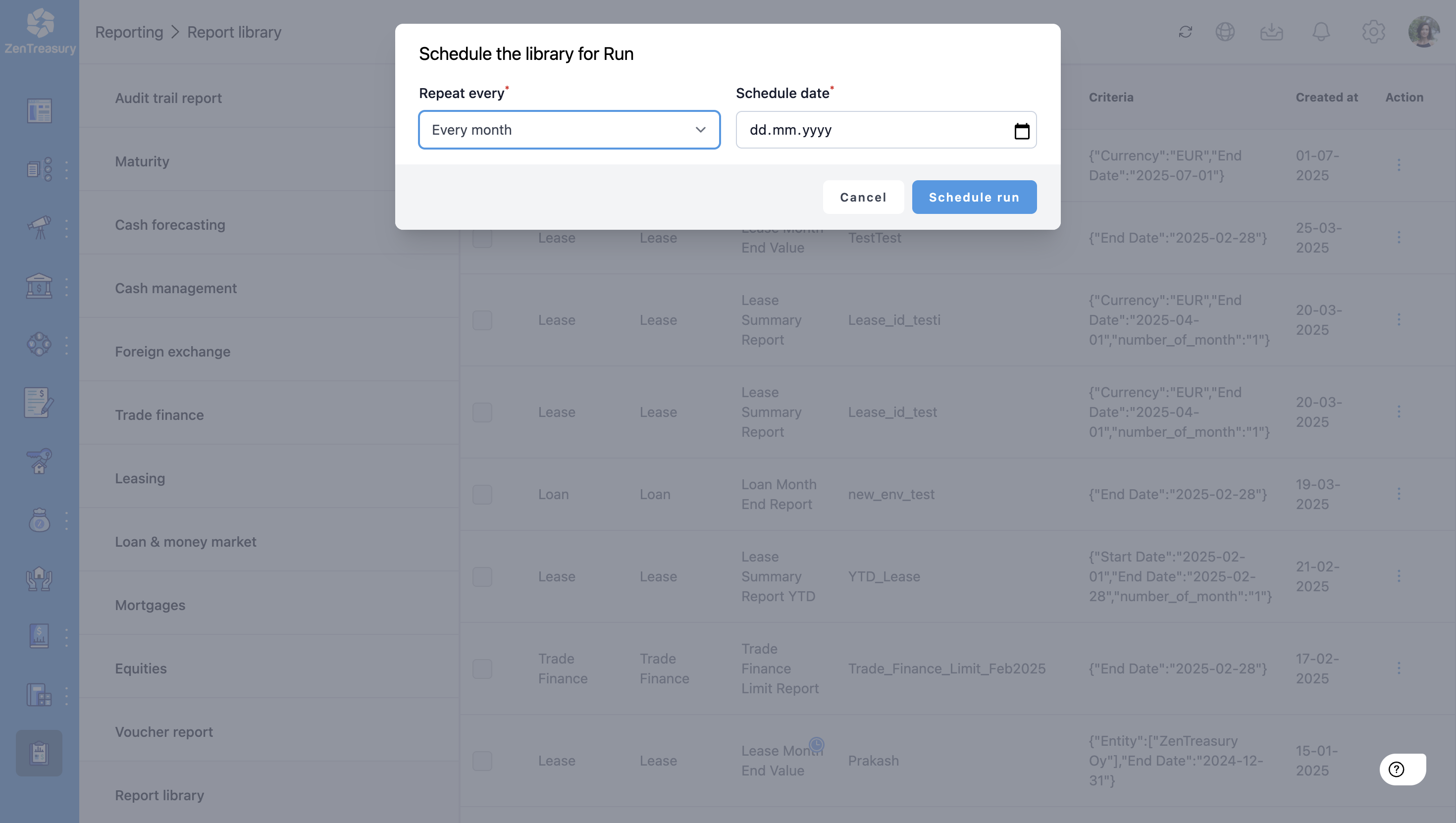
4. Select Start Date
- Choose a specific date in the future to begin the schedule.
- Example: If you select 15th of next month, the system will automatically generate a Month-End Report for the previous month (e.g., December if scheduled on January 15).
Understand Date Handling for Reports
- Single Date Criteria: For reports with only an end date, the system will use the end date of the previous month.
- Two-Date Criteria: For reports with start and end dates, the system will use the start and end of the previous month, overriding criteria set in the report.
5. Access Scheduled Reports
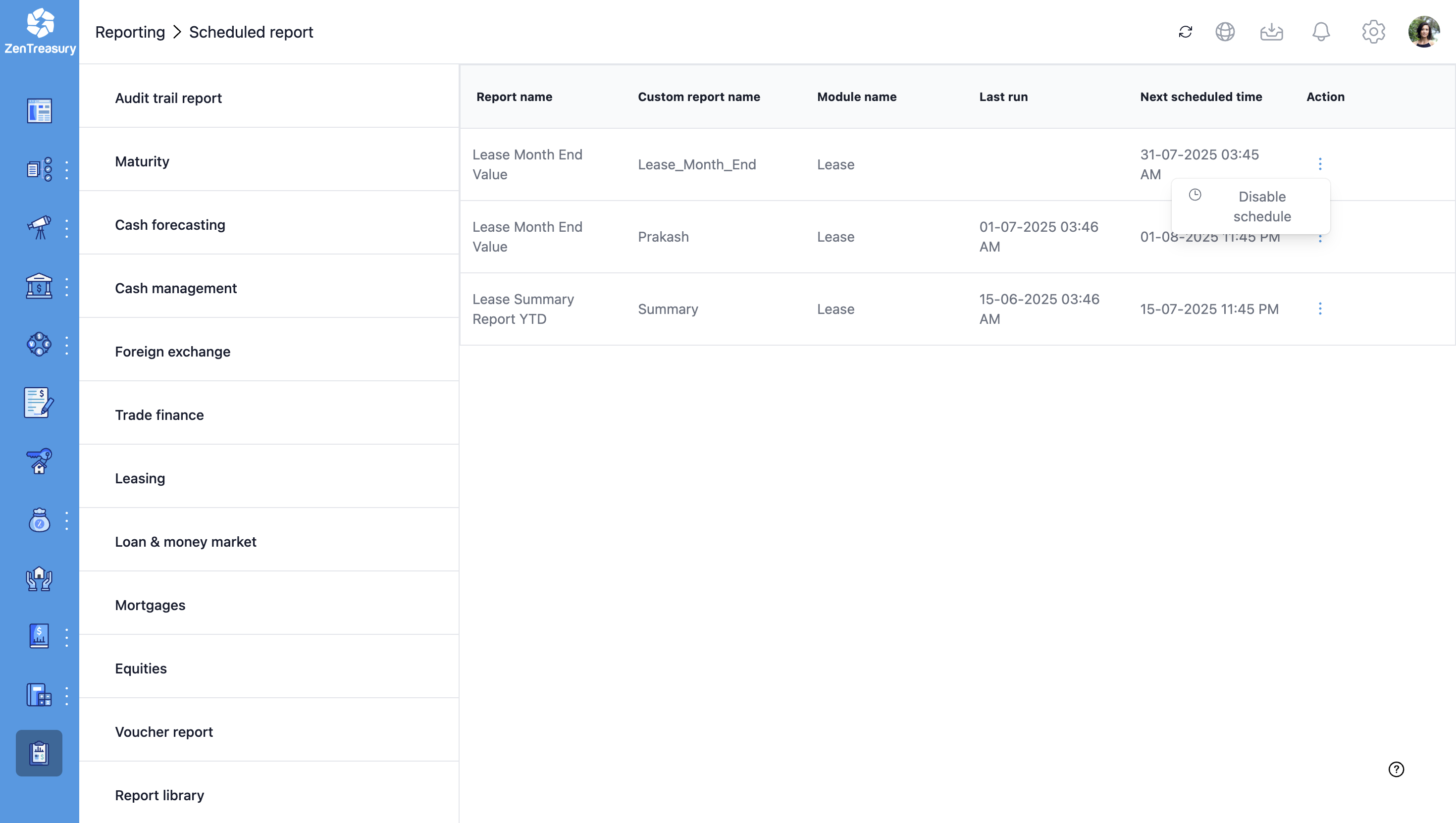
- Navigate to Reporting module and select Scheduled report from the menu.
- Click the three-dot menu in the "Disable schedule" column to stop the Scheduled report.
Was this article helpful?
That’s Great!
Thank you for your feedback
Sorry! We couldn't be helpful
Thank you for your feedback
Feedback sent
We appreciate your effort and will try to fix the article