This guide outlines how to use ZenTreasury's standard reports for creating manual postings from your currency agreements. For FX accounting you need only two reports:
- Realised transactions during a selected period
- Unrealised results to a report date.
Generating Reports
Filtering Options:
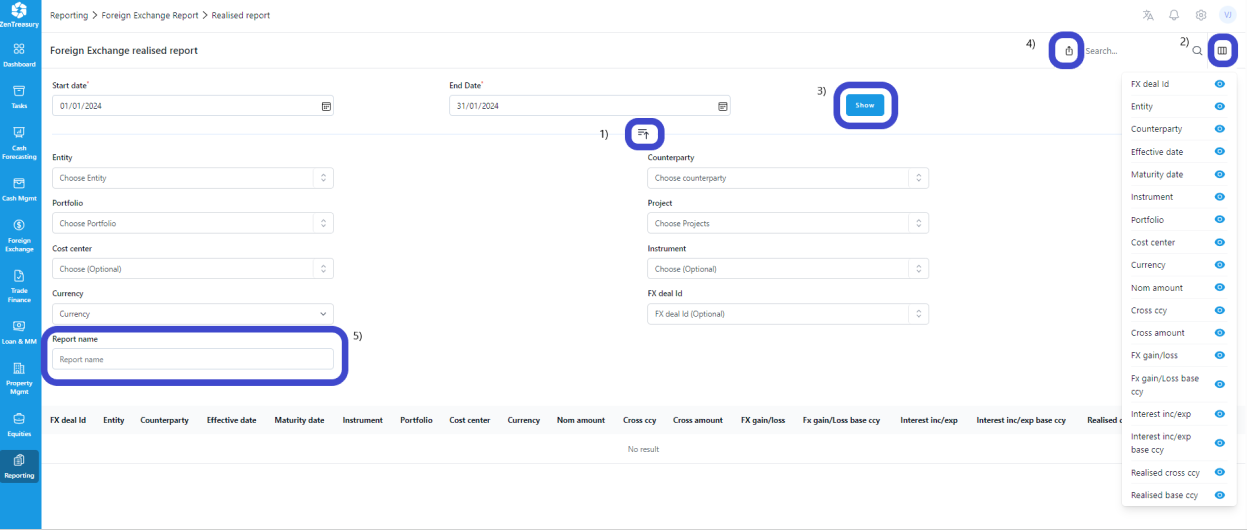
Click on the icon in the middle to access a variety of filtering options for your report, including entity, portfolio, counterparty or even just loan id for one or several specified loans (1).
By default, without selecting a currency, all values will be converted into the entity's base currency for columns that are in base currency.
Currency Selection:
Convert loan amounts into the selected currency using the end date market rate. This feature depends on the currency rate's availability under Settings > Market Data > Foreign Exchange Rates.
Column Visibility:
If you prefer to have less columns, you can hide columns under 'Column visibility' (2). This way you can present only the preferred information in the report and can run more detailed report separately if needed.
Running reports
You can run reports in the view. This means that once you have chosen the needed selections for your report, just click "Show" (3). Then, the system will display the numbers in the page. These can be opened, for example, in excel by clicking the "Export"-icon (4).
Report Library
ZenTreasury allows you to save different report views for future use in the Report Library.
Saving Report View:
Make the needed selections for the report -> Give report a name (5)-> Save. Then, the report will be saved to the library.
Accessing Saved Reports:
Saved reports can be accessed from the Report Library and found in the Report Archive. All settings within a report are preserved, so it's important to adjust the report dates when running it for different time periods.
Was this article helpful?
That’s Great!
Thank you for your feedback
Sorry! We couldn't be helpful
Thank you for your feedback
Feedback sent
We appreciate your effort and will try to fix the article