Foreign Exchange (FX)
The FX module is designed to manage currency exchange agreements. Supported agreement types include Spot, Swap, and Forward agreements. By default, one instrument per each agreement type is available.
Creating New Agreements:
You can create new agreements either manually or by importing them from FX dealing platforms like FxAll, 360T, or Nordea. These platforms are integrated under 'User Profile - Integrations':
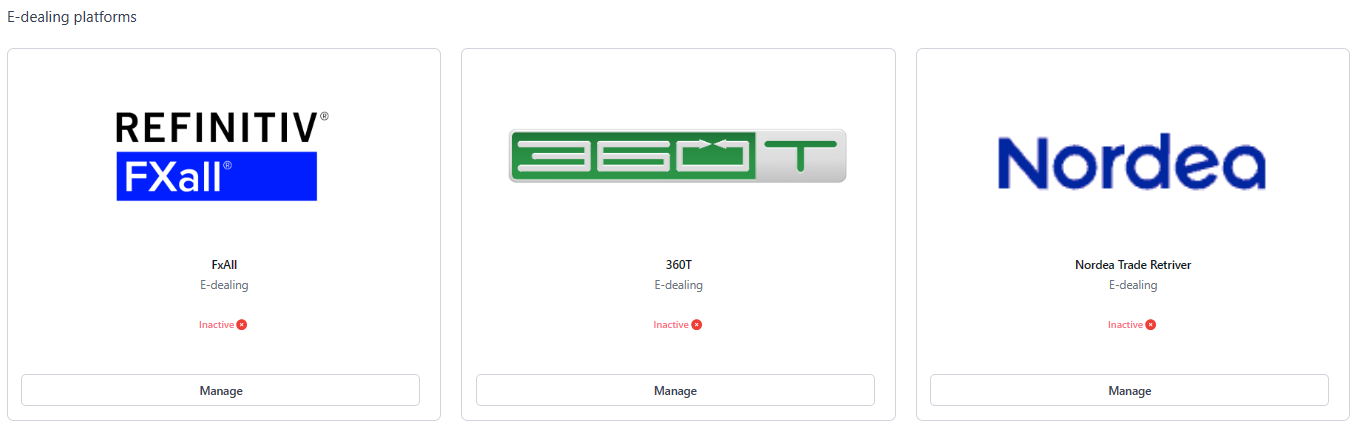
Initial Setup:
1. Assign aliases to all companies (entities you are dealing with) and counterparties (financial institutions) in the 'Company Register'.
2. Define Standard Settlement Instructions under Settings - Common Data - SSI, mentioning which bank account should be used for dealing for each currency.
3. Select a standard portfolio for imported deals as active (Will be assigned for all imported deals).
4. For FxAll, specify the route and credential for using the API to import data. Then, choose from FX-register the option "Import FxAll".
5. For 360T, download deals to your computer and upload them into ZenTreasury. Choose the files -> Check -> Import.
Note: if you want the system to calculate the right valuation (unrealised result) for your forwards and swaps in closing, you need to have - on top of currency fixing rates - forward points in ZenTreasury. You can add them manually, or via a third party rate provider. The integrated providers can be found under User profile - Integrations:
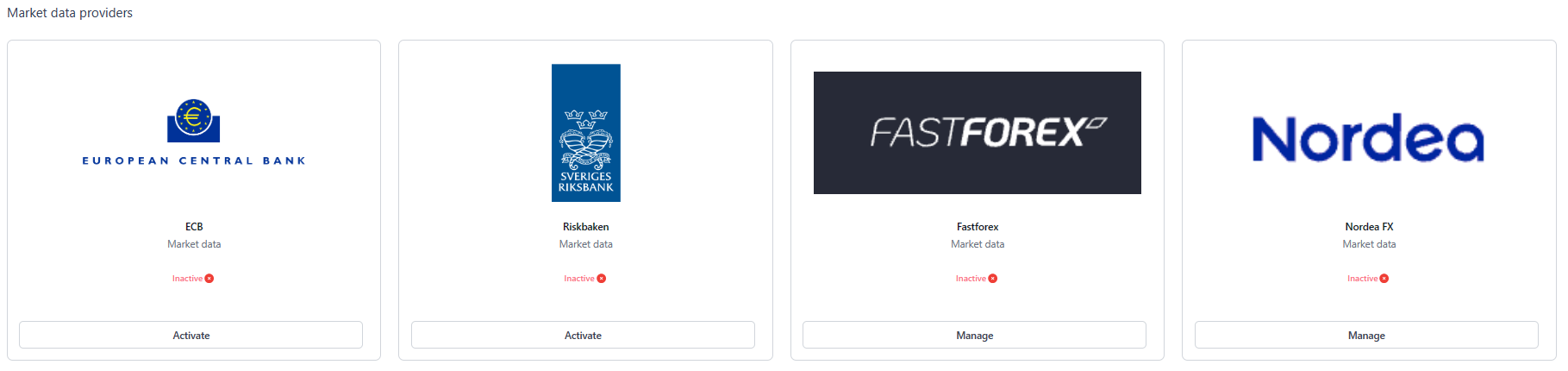
Creating Foreign Exchange Transactions:
Before entering any FX transactions:
Ensure relevant Entities, Counterparties, Portfolios, Cost Centers, Bank Accounts, and FX instrument types are created (separate support articles can be found in the user guide for each instrument type).
Agreement types supported are: Spot, Swap and Forward agreements. By default, there is an existing instrument per each type.
New agreements can be created manually or, if you are using the FxAll or 360T dealing platform you can also import agreements from those systems automatically/semi-automatically.
Manual Creation of FX Transactions:
1. Navigate to the Foreign Exchange module and click the '+' icon on the top right.
2. Select the FX transaction type from the dropdown menu.
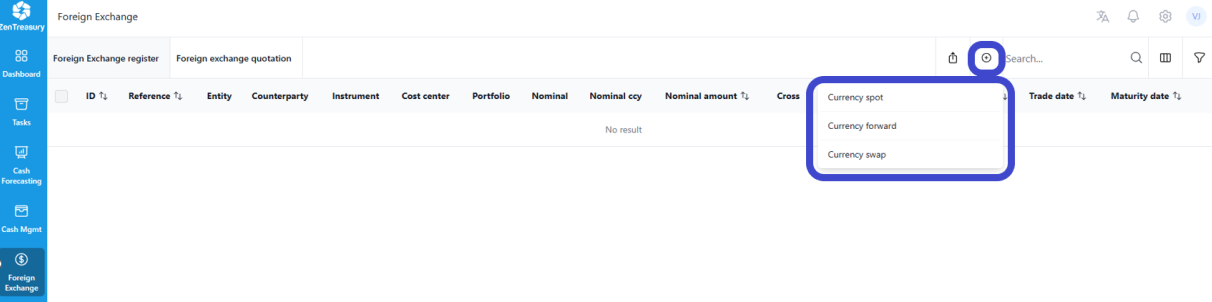
In this example Currency spot is selected:
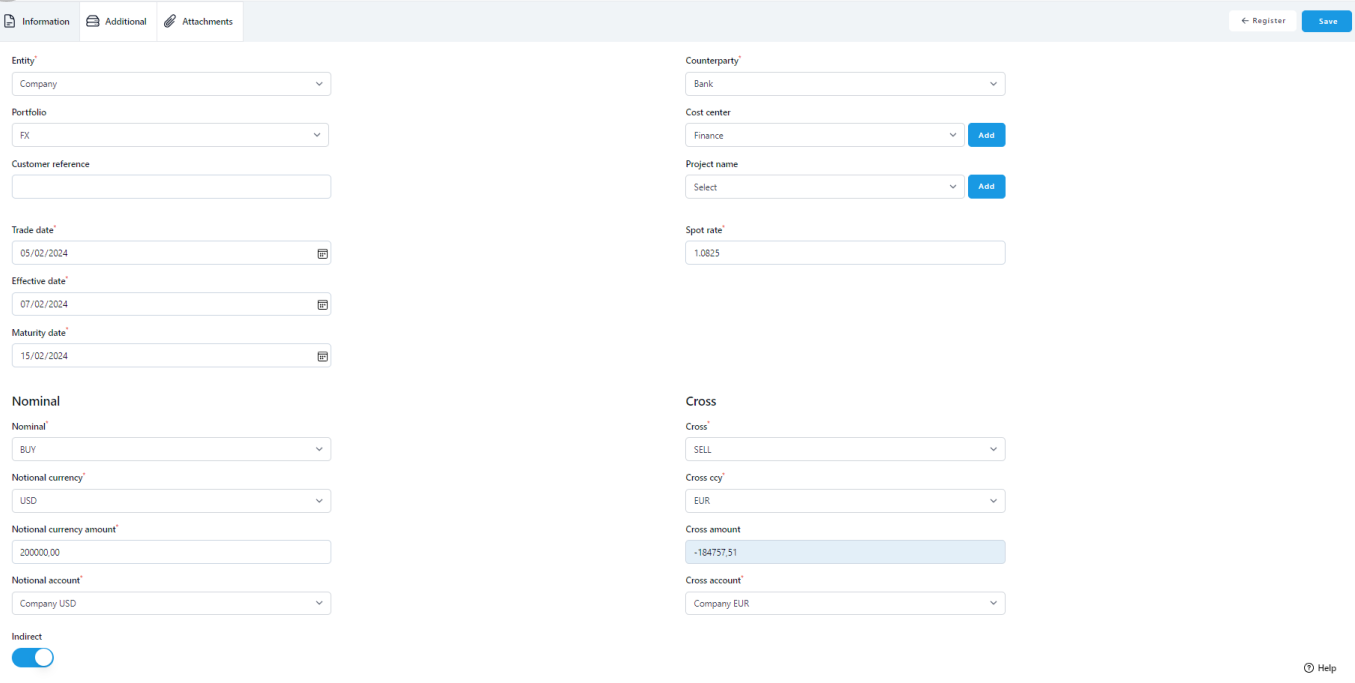
3. Select from the Entity dropdown list the company that is making the foreign exchange transaction. (New entities can be created under ‘Settings - Common Data -Companies’).
4. Select a portfolio from the Portfolio dropdown list (optional). (New portfolios can be created under ‘Settings - Common Data - Portfolios’).
5. Customer reference field can be used to identify a certain FX deal, it can be for example a bank reference, contact person or confirmation number. This is a free text field.
6. Select the dates from the calendar:
- ‘Trade date’
- ‘Effective date’ - normally, it’s the Spot date (T +2) of the transaction
- ‘Maturity date ’
7. Select receiving Counterparty from the dropdown menu. (New counterparties can be created under can be created under ‘Settings - Common Data - Companies, counterparty option has to be selected in the checkmarks).
8. Select a cost center from the dropdown list (optional). (New cost centers can be created under ‘Settings - Common Data - Cost centers’).
9. Select a project name from the dropdown list (optional). Project selection can be used to classify specific FX deals related to certain projects in the reports and dashboard views, for example. (New projects can be created under ‘Settings - Common Data - Projects’).
10. Enter the spot rate.
11. Select whether you are adding a 'BUY' or 'SELL' transaction from the Nominal dropdown list.
12. Enter the primary transaction details:
- Select the Currency (CCY) you are buying or selling.
- Select the account for the transaction (either receiving currency or selling currency) from the ACCOUNT dropdown list. (New bank accounts can be added from ‘Cash Management module - Bank Accounts’)
13. On Cross side BUY/SELL will be automatically be adjusted as opposite based on the Nominal side selection.
14. The transaction amount will be filled automatically (using Nominal, spot rate, points and forward rate in case of forwards) as well as the value in the cross currency after the cross currency selection has been made.
- Select the Currency (CCY) you are buying or selling with.
- After CCY is selected, all entity's bank accounts in that currency will be available in the ACCOUNT dropdown menu. Select the correct bank account to be used with the transaction. (New bank accounts can be added from ‘Cash Management module - Bank Accounts’)
15. Select the Indirect tick box. Direct means that your rate is quoted as nominal/cross and indirect means cross/nominal. Automatically the setting is 'Indirect' unless otherwise chosen.
16. With Swap you need to also specify the second legs' Maturity date and Points.
17. Click 'Save' when you have added all the needed information for the deal. You will be directed to Foreign Exchange register where you can see all existing FX deals.

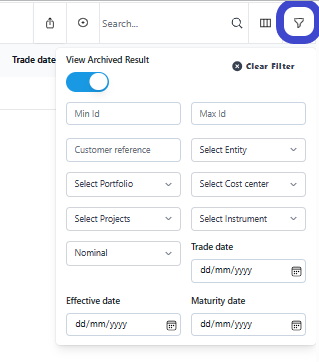
18. Already matured deals can be found using the filter on top right corner by selecting 'View Archived Result'
In the Register view, select the FX deal you just created, click the three dots at the end of the deal and select 'Edit'.

You will see more tabs to be selected related to the FX deal:

Additional Features:
The following text boxes are meant for accounting users: Internal order, tax and RoU asset number, and additional notes. You can save the text or number information to these, and then have them as one column in your accounting template to use when you import the data into your ERP/Accounting system.
Enter ‘additional’ in Text if there is something extra you need to remember out of the agreement.
Select the ’Move to archive’ option before maturity if you wish to move the transaction to the archive folder before maturing; and/or ‘Excluded from Accounting and Reporting’, tick the boxes if you wish to exclude the deal from accounting and reporting.
Audit Trail:
The audit trail feature allows detailed tracking of all changes made to the agreement.
Approval flow:
If there is an approval flow related to the FX deal, the link to the approval flow in question will be visible on this tab.
Attachments:
Attach documents (Excel, PDF, JPG, JPEG, PNG) up to 5MB. Use only alphanumeric characters and hyphens/underscores in file names.
Was this article helpful?
That’s Great!
Thank you for your feedback
Sorry! We couldn't be helpful
Thank you for your feedback
Feedback sent
We appreciate your effort and will try to fix the article