Before you start to enter any loan agreements, you must have created the relevant Entity, Counterparty, Portfolio, Cost Center, Bank Accounts and loan instrument types to proceed.
New commercial paper agreements can be created manually or, by copying an existing one. Before creating a commercial paper agreement, you should create or modify an existing instrument type and select EMIO or DEPO deal type on the instrument selection depending whether you’re borrowing or lending.
When commercial paper agreement expires it goes into archive. When you run reports to past periods, the data is shown from archived agreements as well.
CREATING A COMMERCIAL PAPER AGREEMENT
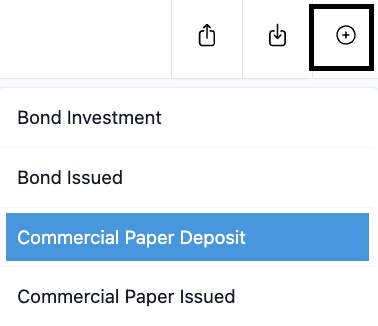
Click on Loans and + icon in the top right corner. Select correct instrument from the list.
1) Choose 'Entity' from the dropdown list from whose perspective the agreement is done
2) Select the counterparty from the 'Counterparty' dropdown list
3) Choosing one 'Portfolio' helps to categorise your data in reports
4) If you need a 'Cost Center' in your reporting or accounting, choose one
5) Enter the transaction amount in the 'Nominal amount' field
- Choose the Currency (CCY)
- Choose the default account used for the first cash flow
6) Fill in the 'Trade date'
7) Fill in the 'Effective date'
8) Fill in the 'Maturity date'
9) Enter the customer reference in the ‘Customer Reference’ box. This is a reference that you can use to identify the transaction. This field is also visible in the register view. For example, you can put here a recognisable loan agreement number.
DEFINE THE FIXED BASE RATE FOR A COMMERCIAL PAPER AGREEMENT
Enter the fixed rate into the Fixed base rate %.
Enter the spread %.
Save this agreement and click "Save" button.
The system will automatically create the cash flows for your commercial paper agreement.
COPYING A COMMERCIAL PAPER AGREEMENT
When you copy a commercial paper agreement, system copies the underlying agreement information including the cash flows. Therefore, you only have to select 'save' and the copy will appear on your register.

Was this article helpful?
That’s Great!
Thank you for your feedback
Sorry! We couldn't be helpful
Thank you for your feedback
Feedback sent
We appreciate your effort and will try to fix the article