Voucher reports in ZenTreasury allow you to automatically generate accounting vouchers for both realized and unrealized transactions and export them to your accounting system or ERP.
This article explains how to run voucher reports step by step, including a practical example.
Before running voucher reports, the following setup must be completed in the Accounting module:
- Chart of Accounts
- Account Mapping
- Voucher Template
If these are not yet configured, please complete them first, as voucher reports rely on these settings.
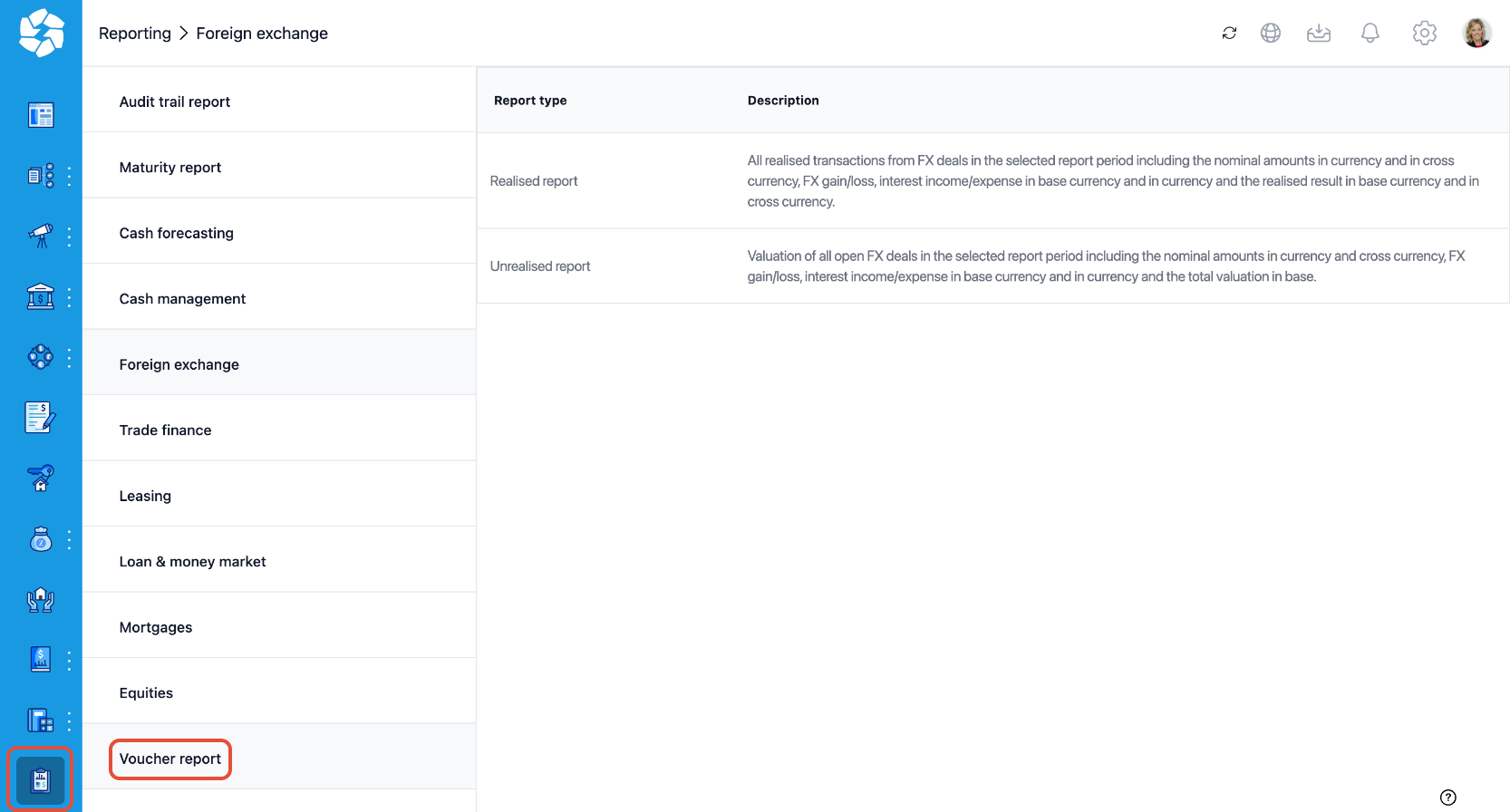
STEP 1: Navigate to Voucher Reports
- Go to Reporting > Voucher report
- Choose whether you want to run:
- Realized voucher report
- Unrealized voucher report
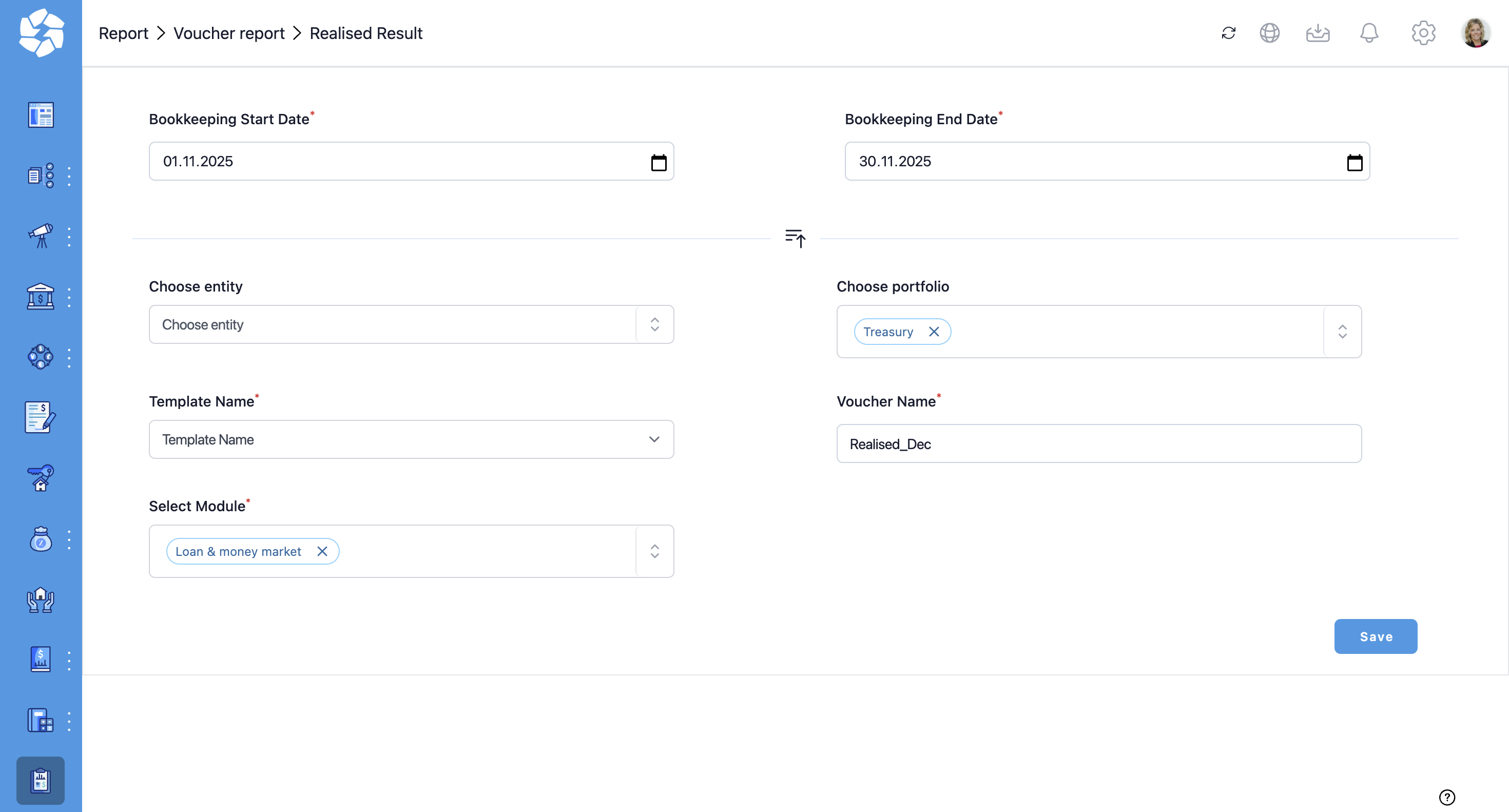
STEP 2: Define Report Parameters
When running a voucher report, you need to define the following:
- Bookkeeping start and end date if applicable
- Entity (optional). If left empty, the system includes all applicable entities.
- Template name
- Module e.g. Foreign Exchange, Lease or Loan & Money Market
- Voucher template
Select the voucher template that matches your accounting system’s format. - Portfolio if applicable
- Voucher name
Once all fields are filled, click Save.
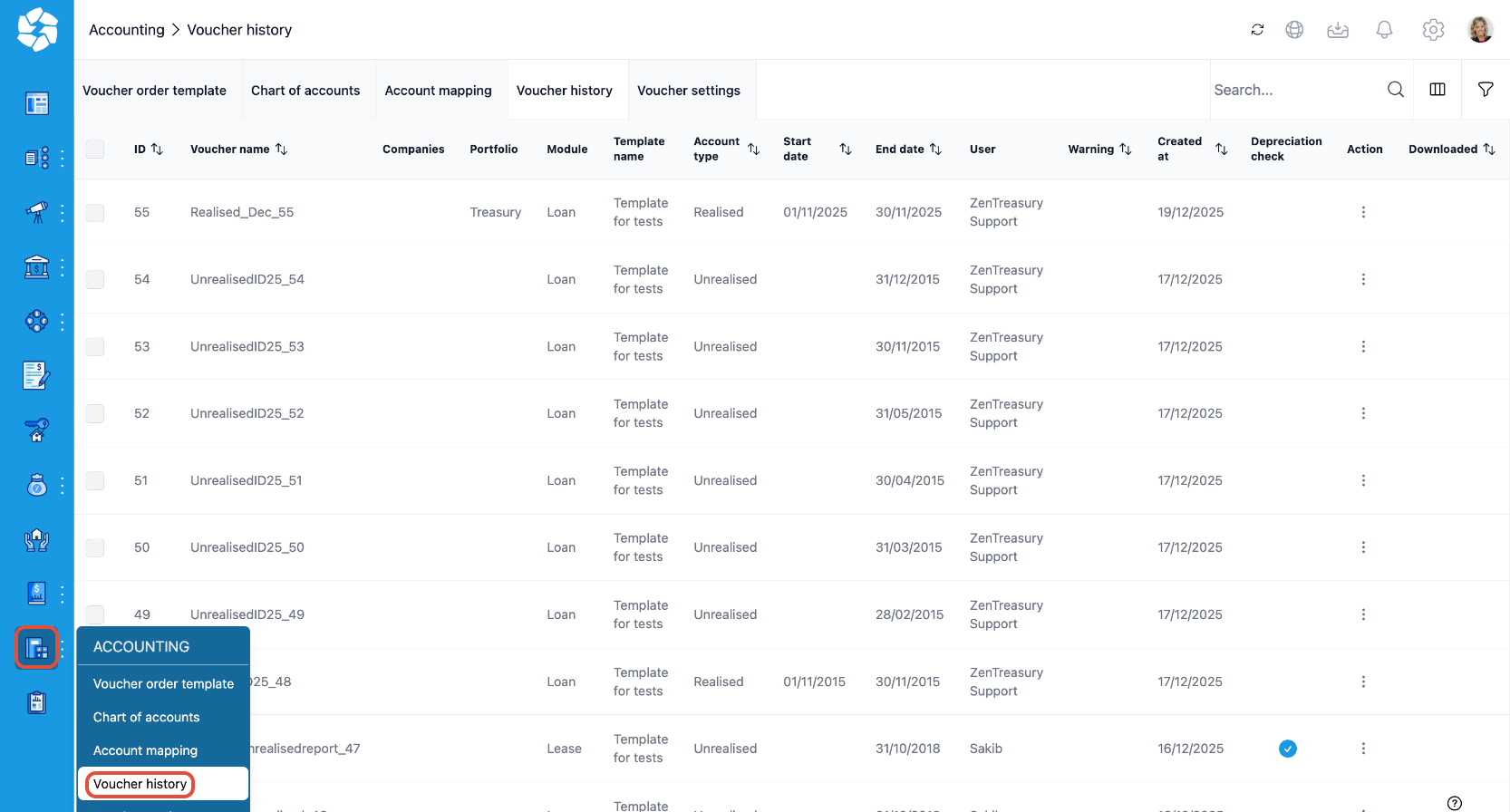
STEP 3: Voucher History
After saving the voucher report the voucher is automatically transferred to the Accounting module.
Navigate to Accounting → Voucher History.
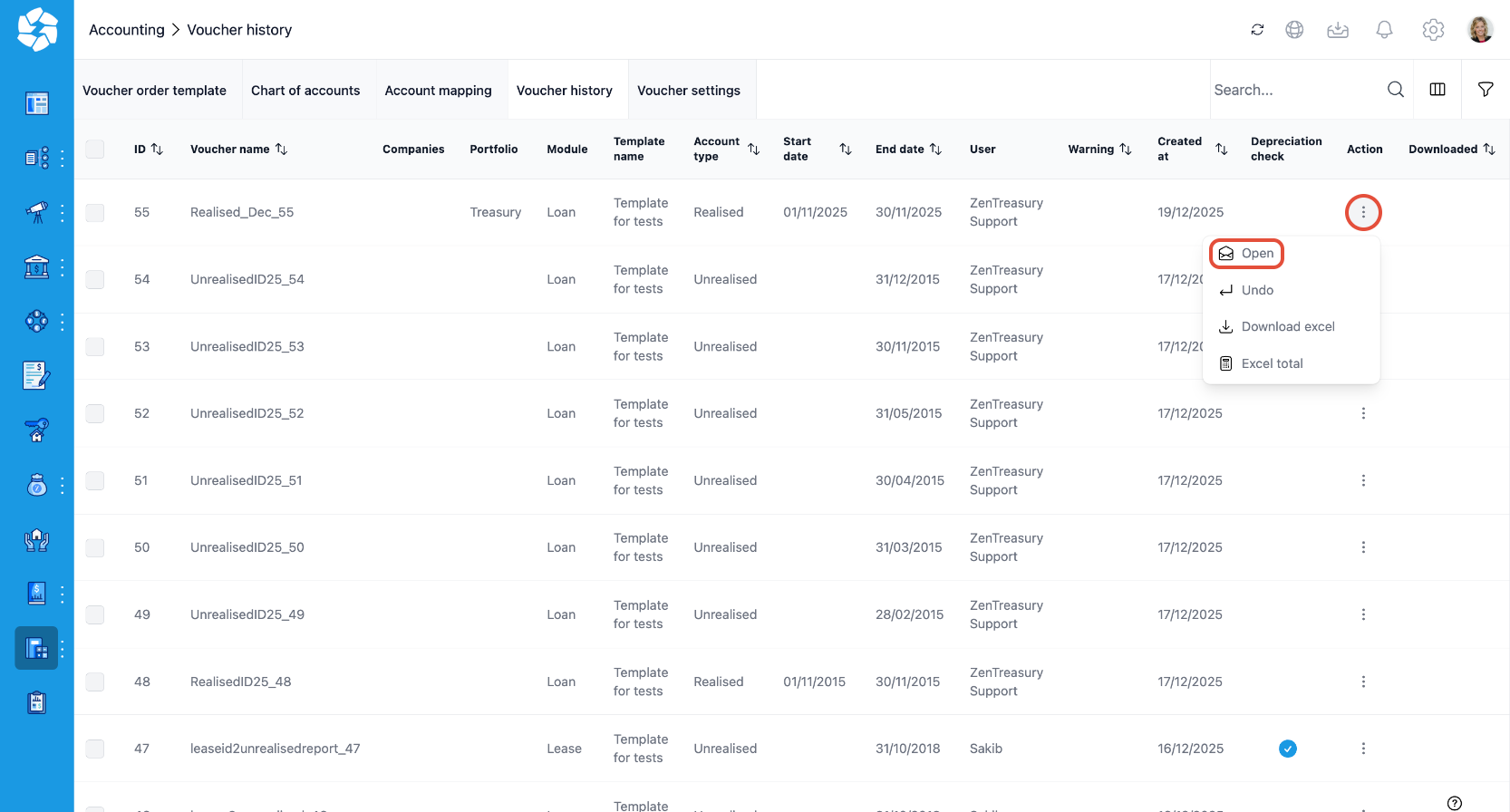
STEP 4: Review the Voucher
Click on the three dots on the left side of the voucher row and then click Open.
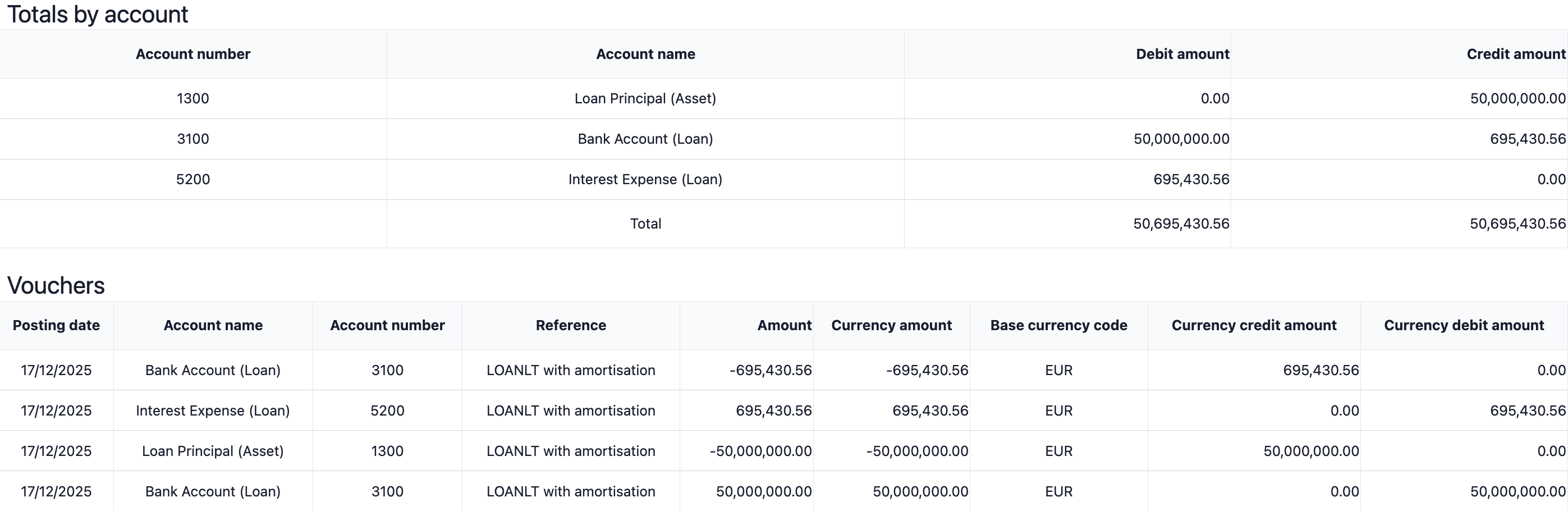
When you open the voucher, you will see:
- The columns defined in your voucher template
(e.g. posting date, account name, account number, reference, amount, currency...) - Debit and credit postings generated automatically based on:
- Account mapping rules
- Voucher settings
- Transaction data
- A summary section showing total debit and credit amounts
(if multiple transactions are included, they appear line by line)
STEP 5: Export the Voucher
You can export the voucher in several ways:
- Download as an Excel file
- Download as an CSV file
- Transfer via REST API to your ERP or accounting system
The available formats depend on the settings defined in the voucher template.
STEP 6: Running Vouchers in the Future
Once the setup is complete, future voucher runs are very easy:
1. Select the voucher report you want to run from the voucher history listing
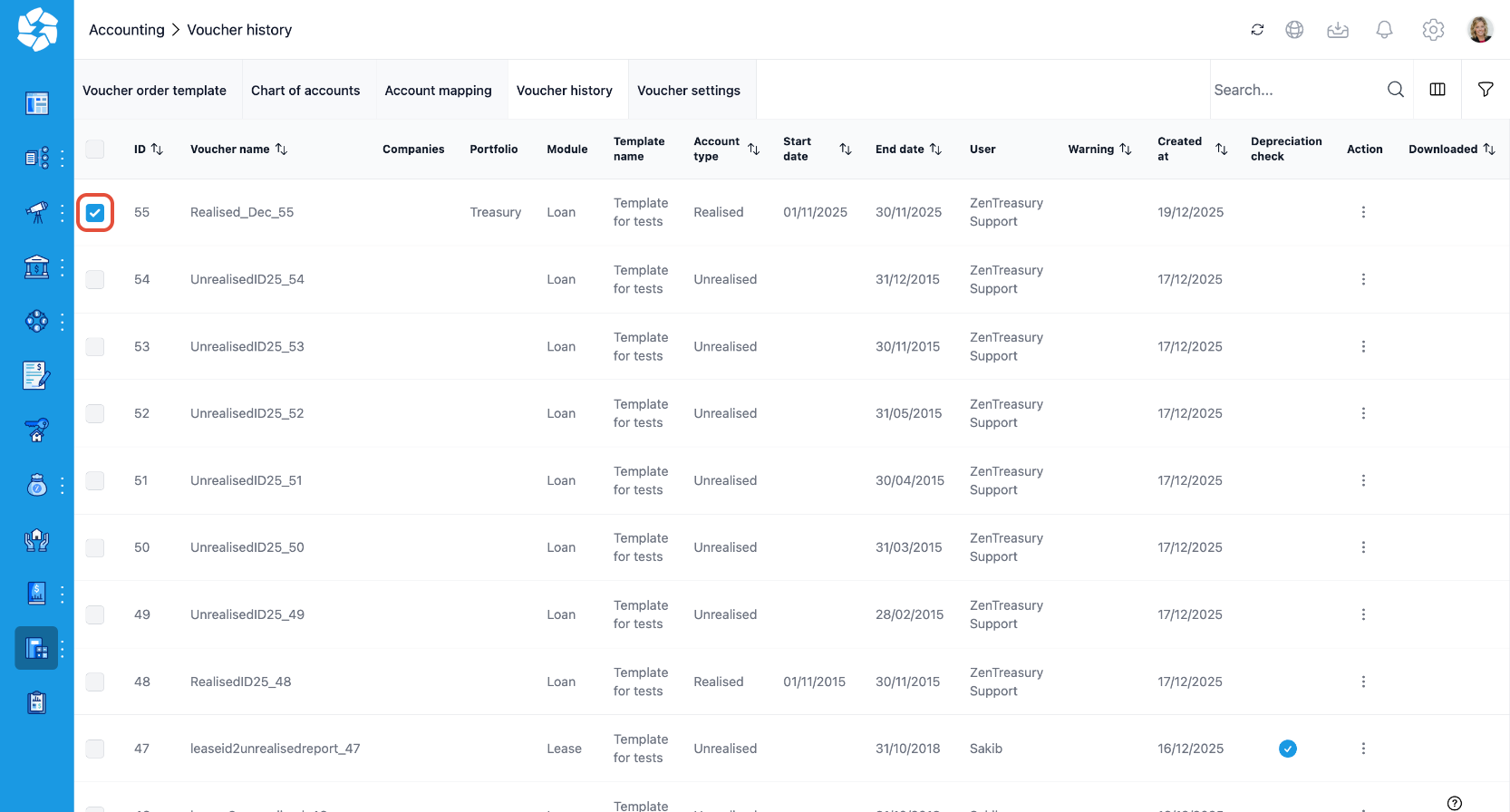
2. Define new start and end date at the bottom of the page

3. Select add and wait until the new voucher report appears on the top of the voucher history listing
Was this article helpful?
That’s Great!
Thank you for your feedback
Sorry! We couldn't be helpful
Thank you for your feedback
Feedback sent
We appreciate your effort and will try to fix the article